Sunday, November 4, 2018

Outlook save all attachments

Save attachments from multiple selected items in Outlook (VBA)

Introduction

This VBA sample illustrates how to save attachments from multiple selected items in Outlook.

Scenarios

When multiple items are selected, the Save Attachments option in the File menu will be grayed out, and it's inconvenient to save attachments one by one. This script is useful and can be used to save attachments from multiple selected items all at once.

Script

Import the "mAttachmentSaver.bas" file.
Step1. Press Alt+F11 to open the VBE in Outlook.
Step2. Drag the "mAttachmentSaver.bas" file to the Project Explorer (Press Ctrl+R if you cannot see it) or via File >> Import File... (Ctrl+M).
Run the ExecuteSaving macro to save attachments.
Step3. Go back to Outlook UI, and then press Alt+F8 to open the Macros window.
Step4. Select "ExecuteSaving" in the names list, and then click the Run button (Please remember to select Outlook item(s) before running this macro).
Step5. Select a specific folder to save attachments from Browse For Folder dialog box, and then click the OK button.
 

Here are some code snippets for your references. To get the complete script sample, please click the Download button at the beginning of this page.
Visual Basic
' ###################################### 
' Run this macro for saving attachments. 
' ###################################### 
Public Sub ExecuteSaving() 
    Dim lNum As Long 
     
    lNum = SaveAttachmentsFromSelection 
     
    If lNum > 0 Then 
        MsgBox CStr(lNum) & " attachment(s) was(were) saved successfully.", vbInformation, "Message from Attachment Saver" 
    Else 
        MsgBox "No attachment(s) in the selected Outlook items.", vbInformation, "Message from Attachment Saver" 
    End If 
End Sub
  

Note

1. Please make sure that macros are enabled in Outlook. 
For Outlook 2010:File >> Options >> Trust Center >> Trust Center Settings >> Macro Settings >> Enable all macros >> OK >> OK >> Restart Outlook
For Outlook 2007:Tools >> Macro >> Security... >> Macro >> Security >> No security check for macros >> OK >> Restart Outlook
For Outlook 2003:Tools >> Macro >> Security... >> Macro >> Security >> Low >> OK >> Restart Outlook
2. This macro will save all attachments even those are used in the item body.
3. If the attachment file to be saved (let's call "FileA.txt") has already existed in the folder (FileA.txt, FileB.txt, FileC.txt ... and so on), the date time string will be appended to the attachment file name automatically.For example:
The "FileA.txt" file may be named as "FileA_05201830669.txt".
        "05" means the current month;
        "20" means the current day;
        "18" means the current hour;
        "30" means the current minute;
        "669" means the current millisecond.
4. In Windows file system, the specified path cannot be so long that you cannot create or save a file. The maximum path length limitation is 260 characters. So sometimes some attachments cannot be saved successfully if the specified path is over 260 characters.

Credit:

https://gallery.technet.microsoft.com/office/Save-attachments-from-5b6bf54b


download: https://gallery.technet.microsoft.com/office/Save-attachments-from-5b6bf54b/file/65122/1/mAttachmentSaver.zip

Monday, September 11, 2017

PSD to HTML for FREE

Good news!

RapidUI company has just launch their awesome product to help people create a landing page, mailer or even a full website out of PSD.

it means that you can get a website done without any development skills!

This is the best PSD to HTML solution i tried so far.


Enjoy

Nir.

Monday, August 28, 2017

Download Protected Issuu Document

there is an easy way to download Issuu document even if its protected

1. copy the url of the issuu document you want to download.
2. paste it in here http://issuu-download.tiny-tools.com/http://issuu-download.tiny-tools.com/ and submit
3. print/save to pdf

enjoy :)

Saturday, September 3, 2016

Centos 6/RHEL install Elinks Text Browser


Credit: http://minimallinux.blogspot.com/2012/07/centos-6rhel-install-elinks-text-browser.html

Elinks is a popular text based browser for Linux which is easy to use and install. Its in many standard repos so just type

$sudo yum -y install elinks             to install it

$elinks                                 to run it

Or you can visit http://www.elinks.cz/ where they build it.

Its a multi collaborative effort and the goal of the project is to provide a feature-rich text mode browser with an open patches/features inclusion policy

It's an excellent little browser and you will find yourself using it regularly once you have tried it. It's main function is to work in a standard Linux console.

The first screen to render in the console on running Elinks is a url entry box. A simpler opening GUI would be difficult to conceive and it is immediately redolent of the old Google fascia only in Black and White. 

See it below, in  an Rxvt terminal emulator on the Desktop.


Elinks Text Web Browser in Rxvt terminal emulator

Often, you will know the url of a page of information you need, especially if you visit it regularly. You can just pop up a terminal window, type in elinks with the url and you are in business. Fast/touch typers will definitely like it.

It has a menu at the top similar to many of the day to day applications you may run on a normal desktop, but runs in text mode. Menu options are

File View Link Tools Setup Help 

with a number of sub menus beneath them.


Type minimallinux.blogspot.com into the url box and view the contents of this blog in text mode.


Elinks in Rxvt viewing minimallinux.blogspot.com

It is a breeze to negotiate the various options and renders pages accurately and quickly. It is much easier to use than the Lynx text browser which is also widely available, but slightly more complex.

If you are in a Linux console and need to look online for information, this is the ideal way to do it. So give it a try, install as above and run the program.

Run the program and type the url you require simultaneously and it will open up at the url, as below.So the command

#elinks http://www.hardcode.nl/archives_143/article_574-format-drive-using-fdisk-on-linux.htm           shows as below.


Elinks in a Linux console.

You can sign in to a Google account if you have one,just hit Esc for the menu, go to file and open a new tab, type in the url and up pops the sinisterly ubiquitous Google page. Arrow down to sign in and navigate to email address, which is highlighted in black, hit enter so it turns white and you can enter your email, repeat the procedure for the password.

You get a message about updating to chrome but nonetheless most of the site works in text mode. You can navigate around your account and make adjustments as necessary. I didn't, however, find out how to sign out of the Google account so if you do, feel free to post the details here.


Elinks in Rxvt downloading a Centos 6 iso

You can also use Elinks in the Desktop in a terminal emulator like rxvt which is often quicker, and handy for viewing text dominated information sites.

Being realistic, a text based browser is not going to replace or compete with a graphical web browser such as the ones you have become used to on a Desktop & many sites just aren't suited to them. They ARE harder to use and require considerable keyboard skills to get the most out of them, but unquestionably they are very useful in a console environment and you should install one as standard most of the time.

Elinks is a highly recommended text based Web Browser for the Linux console.


Thursday, April 21, 2016

TunnelBear - Simple VPN for PC & all your devices

    TunnelBear is the world's easiest to use consumer VPN (virtual private network) that securely “tunnels” your internet connection to locations around the world. TunnelBear can be used to protect your privacy, to bypass internet censorship and to experience the internet as people in other countries experience it.


enjoy

Download SoundCloud to MP3

Saving your favorite music has never been easier!


Downloading music to listen to offline became very easy:
1. Goto SoundCloud, choose your song and play it.
2. Click the share button next to the song you want (while its playing).
3. Go to SoundDrain, paste the url, convert and download.


enjoy your track :)

Few words about SoundDrain:
Download SoundCloud to mp3 today using SoundDrain to your PC, Ipad or smartphone! You can save the music in whatever format suited for your Ipod, Iphone, Ipad or laptop. Moreover, the amazing thing is, you can do all that in just a couple of seconds!
SoundCloud converter to mp3 is an amazing free application that helps you to download soundcloud to mp3 songs of all genres and from all over the world in any format at the click of a button, straight from the cloud. It is cool, helpful, and amazingly easy to use. It is the fastest way to get quality music from the cloud, whether you are a deejay, artiste, or music fan. In just three clicks, you will have your music downloaded. There is no sign up required: just access our website, type in the title of your favorite music, identify your preferred format, download, and enjoy!


Download Youtube as MP3

YouTube-mp3.org is the easiest online service for converting videos to mp3. You do not need an account, the only thing you need is a YouTube URL. We will start to convert the audiotrack of your videofile to mp3 as soon as you have submitted it and you will be able to download it. Different from other services the whole conversion process will be perfomed by our infrastructure and you only have to download the audio file from our servers. Because of this our software is platform-independent: You can use it with your Mac, a Linux PC or even an iPhone. All our conversions will be perfomed in high quality mode with a bitrate of at least 128 kBit/s. Do not worry, our service is completely free. We need approximately 3 to 4 minutes per video.


source: http://www.youtube-mp3.org/

Stop Windows 10 Upgrading Popup

Stop Windows 10 Upgrading Popup

If you want a really simple and easy way to get rid of the “Get Windows 10” icon and stop your PC from downloading Windows 10, you can download a little piece of freeware called GWX Control Panel from a developer that isn’t happy with this nonsense either.
Download it, run it, and then click the “Disable Get Windows 10 App (permanently remove icon)” button. And then click the “Disable Operating System Upgrades in Windows Update” button too for good measure.
Screenshot_11_2_15__9_03_PM
You’ll have to reboot, but at the end, the icon will be gone and your computer shouldn’t get the upgrade. And luckily you can click those buttons again to put things back the way they were.
source: howtogeek.com

Sunday, April 3, 2016

Fake MailBox Generator

WHAT IS THE FAKE MAIL GENERATOR?

The Fake Mail Generator is an absolutely free disposable email system. By simply visiting this site the above address has already been activated. Use it instead of your regular email address to avoid spam. When an email is received it will pop up instantly on this page.
The Fake Mail Generator offers several generic domain names—and even country-specific domains!

http://www.fakemailgenerator.com/


source: http://www.fakemailgenerator.com/

Android - how to increase microphone volume

How To Increase Microphone Volume


You can adjust your internal microphone level by entering the engineering mode.

Please be extremely careful and do not touch anything you don't know!

In phone dial pad enter *#*#3646633#*#* 

Posted Image

Navigate to:

Audio 

Normal mode

Then choose:

Type: Mic

Level:

Level 6 is the max
Level 1 is min

Then press SET

Posted Image
Posted Image


After that please reboot your device. 


source:
http://forum.xtreamer.net/Support-Mobile/questions/106/How+To+Increase+Microphone+Volume

Sunday, October 25, 2015

Hack excel password protection

This routine provides a password to unprotect your worksheet. However, it may not give you the original password that was used.
Open the workbook that has the protected sheet in it. Hit Alt+F11 to view the Visual Basic Editor. Hit Insert-Module and paste this code into the right-hand code window:
Sub PasswordBreaker()
  'Author unknown but submitted by brettdj of www.experts-exchange.com
 
  Dim i As Integer, j As Integer, k As Integer
  Dim l As Integer, m As Integer, n As Integer
  Dim i1 As Integer, i2 As Integer, i3 As Integer
  Dim i4 As Integer, i5 As Integer, i6 As Integer
  On Error Resume Next
  For i = 65 To 66: For j = 65 To 66: For k = 65 To 66
  For l = 65 To 66: For m = 65 To 66: For i1 = 65 To 66
  For i2 = 65 To 66: For i3 = 65 To 66: For i4 = 65 To 66
  For i5 = 65 To 66: For i6 = 65 To 66: For n = 32 To 126
    
       
 ActiveSheet.Unprotect Chr(i) & Chr(j) & Chr(k) & _
      Chr(l) & Chr(m) & Chr(i1) & Chr(i2) & Chr(i3) & _
      Chr(i4) & Chr(i5) & Chr(i6) & Chr(n)
  If ActiveSheet.ProtectContents = False Then
      MsgBox "One usable password is " & Chr(i) & Chr(j) & _
          Chr(k) & Chr(l) & Chr(m) & Chr(i1) & Chr(i2) & _
          Chr(i3) & Chr(i4) & Chr(i5) & Chr(i6) & Chr(n)
   ActiveWorkbook.Sheets(1).Select
   Range("a1").FormulaR1C1 = Chr(i) & Chr(j) & _
          Chr(k) & Chr(l) & Chr(m) & Chr(i1) & Chr(i2) & _
          Chr(i3) & Chr(i4) & Chr(i5) & Chr(i6) & Chr(n)
       Exit Sub
  End If
  Next: Next: Next: Next: Next: Next
  Next: Next: Next: Next: Next: Next

End Sub
Close the VB Editor window. Navigate to the worksheet you want to unprotect. Hit Tools-Macro-Macros and double-click PasswordBreaker in the list.


Credit: http://www.theofficeexperts.com/

Saturday, October 3, 2015

How can I run multiple Skype accounts on Windows desktop?

To use more than one Skype account on the same computer at the same time, you need to start a new instance of Skype.
  1. From the Windows taskbar, click Start > Run (or press the Windows The Windows key. and R keys on your keyboard at the same time).
  2. In the Run window, type the following command (including the quotes) and pressOK:
  3. For 32-bit operating systems:
    "C:\Program Files\Skype\Phone\Skype.exe" /secondary
    For 64-bit operating systems:
    "C:\Program Files (x86)\Skype\Phone\Skype.exe" /secondary
If you get an error message, copy and paste the exact command from this page and try again.
Be aware that if you’ve changed the installation path for Skype, then you’ll need to enter the correct path for the Skype.exe file.
If the above solution fails, you can try another option:
  1. Find the Skype.exe file in C:\Program Files\Skype\Phone\ if you’re running a 32-bit operating system.
  2. If you’re running 64-bit operating system, you can find the file in C:\Program Files (x86)\Skype\Phone\.
  3. Right-click the file and select Send to > Desktop (create shortcut).
  4. Locate the shortcut on your desktop, then right-click it and select Properties.
  5. In the Target field of the Shortcut tab, add /secondary to the end of the path. The Target field should now be "C:\Program Files\Skype\Phone\Skype.exe" /secondary.
  6. Click OK. You can now start a new instance of Skype every time you double-click the new shortcut.

credit: https://support.skype.com/en/faq/FA829/how-can-i-run-multiple-skype-accounts-on-windows-desktop

Wednesday, September 9, 2015

Talend - Open Source BI System

As part of a global series of events, Talend Connect France was held on October 9, 2014 and brought together the entire Talend community, including our customers, users and partners for a full day of valuable insight, information sharing and networking. 

It enabled delegates to interact with management and technical teams of the company, participate in technical workshops and meet both users and business partners.


"Talend is cost-effective, easy to use, readily adaptable and extremely versatile. With the help of the graphical user interface we can easily and quickly link up a large number of source systems using the standard connectors!" 

RAFAEL HERRERA, HEAD OF BI INTERNATIONAL AT GROUPON

  • Speed Implementation with a Unified Platform
  • Expand Your Options with an Open Architecture
  • Lower TCO with Predictable Costs


Website url: http://www.talend.com/


credits: talend website.


Tuesday, July 14, 2015

Change defualt local google to google.com

Hi,

This is how you should switch from any local google website to google.com

1. lets test, browse google.com
2. you'll be redirect to your local google site, on the footer you'll see a link with google.com. click that link.
3. if this is what you expect to get as default then all you got to do is just browse this url:
http://www.google.com/ncr = google.com


and you are good to go.


good luck

Bentzy.

Sunday, June 14, 2015

SearchMyFiles - advanced search tool with search in files feature

SearchMyFiles v2.55 - Alternative to 'Search For Files And Folders' module of Windows + Duplicates Search 
Copyright (c) Nir Sofer


SearchMyFiles is an alternative to the standard "Search For Files And Folders" module of Windows. It allows you to easily search files in your system by wildcard, by last modified/created/last accessed time, by file attributes, by file content (text or binary search), and by the file size. SearchMyFiles allows you to make a very accurate search that cannot be done with Windows search. For Example: You can search all files created in the last 10 minutes with size between 500 and 700 bytes. 
After you made a search, you can select one or more files, and save the list into text/html/csv/xml file, or copy the list to the clipboard.
SearchMyFiles is portable, and you can use it from a USB flash drive without leaving traces in the Registry of the scanned computer.

System Requirements

This utility works on any version of Windows starting from Windows 2000 and up to Windows 8. Both 32-bit and 64-bit systems are supported.


Feedback

If you have any problem, suggestion, comment, or you found a bug in my utility, you can send a message to nirsofer@yahoo.com
Download SearchMyFiles
Download SearchMyFiles for x64

Source: http://www.nirsoft.net/utils/search_my_files.html


Ditto - Clipboard History Management

Ditto - Clipboard History Management

Ditto is an extension to the standard windows clipboard. It saves each item placed on the clipboard allowing you access to any of those items at a later time. Ditto allows you to save any type of information that can be put on the clipboard, text, images, html, custom formats

Features

  • Easy to use interface
  • Search and paste previous copy entries
  • Keep multiple computer's clipboards in sync
  • Data is encrypted when sent over the network
  • Accessed from tray icon or global hot key
  • Select entry by double click, enter key or drag drop
  • Paste into any window that excepts standard copy/paste entries
  • Display thumbnail of copied images in list
  • Full Unicode support(display foreign characters)
  • UTF-8 support for language files(create language files in any language)
  • Uses sqlite database (www.sqlite.org)


source: http://ditto-cp.sourceforge.net/


Sunday, June 5, 2011

VisualBee - Your PowerPoint Presentation Solution

Don't get frustrated by PowerPoint ever again. The VisualBee plugin (add-in) is your solution.

Automatic Design


With A Single Click
VisualBee is so easy to use. Just insert your desired content to a blank PowerPoint presentation and press "enhance presentation".


Complete Control
You have total control over your final presentation. Review each slide of your enhanced presentation and modify its content as you see fit.


Keep Your Own Style
Select the different style and feel of your enhanced PowerPoint presentation best representing your own style.


Take The Credit
The final enhanced presentation is yours to keep and use. It is a regular PowerPoint presentation.

Credit: http://visualbee.com/index.php/products/overview.html

Nir.

Sunday, April 24, 2011

Google Searching Tricks

Google searching tricks

cache:
If you include other words in the query, Google will highlight those words within the cached document. For instance, [cache:www.google.com web] will show the cached content with the word “web” highlighted. This functionality is also accessible by clicking on the “Cached” link on Google’s main results page. The query [cache:] will show the version of the web page that Google has in its cache. For instance, [cache:www.google.com] will show Google’s cache of the Google homepage. Note there can be no space between the “cache:” and the web page url.

link:
The query [link:] will list webpages that have links to the specified webpage. For instance, [link:www.google.com] will list webpages that have links pointing to the Google homepage. Note there can be no space between the “link:” and the web page url.

related:
The query [related:] will list web pages that are “similar” to a specified web page. For instance, [related:www.google.com] will list web pages that are similar to the Google homepage. Note there can be no space between the “related:” and the web page url.

info:
The query [info:] will present some information that Google has about that web page. For instance, [info:www.google.com] will show information about the Google homepage. Note there can be no space between the “info:” and the web page url.define:
The query [define:] will provide a definition of the words you enter after it, gathered from various online sources. The definition will be for the entire phrase entered (i.e., it will include all the words in the exact order you typed them).

stocks:
If you begin a query with the [stocks:] operator, Google will treat the rest of the query terms as stock ticker symbols, and will link to a page showing stock information for those symbols. For instance, [stocks: intc yhoo] will show information about Intel and Yahoo. (Note you must type the ticker symbols, not the company name.)


site:
If you include [site:] in your query, Google will restrict the results to those websites in the given domain. For instance, [help site:www.google.com] will find pages about help within www.google.com. [help site:com] will find pages about help within .com urls. Note there can be no space between the “site:” and the domain.

allintitle:
If you start a query with [allintitle:], Google will restrict the results to those with all of the query words in the title. For instance, [allintitle: google search] will return only documents that have both “google” and “search” in the title.

intitle:
If you include [intitle:] in your query, Google will restrict the results to documents containing that word in the title. For instance, [intitle:google search] will return documents that mention the word “google” in their title, and mention the word “search” anywhere in the document (title or no). Note there can be no space between the “intitle:” and the following word.Putting [intitle:] in front of every word in your query is equivalent to putting [allintitle:] at the front of your query: [intitle:google intitle:search] is the same as [allintitle: google search].

allinurl:
If you start a query with [allinurl:], Google will restrict the results to those with all of the query words in the url. For instance, [allinurl: google search] will return only documents that have both “google” and “search” in the url.Note that [allinurl:] works on words, not url components. In particular, it ignores punctuation. Thus, [allinurl: foo/bar] will restrict the results to page with the words “foo” and “bar” in the url, but won’t require that they be separated by a slash within that url, that they be adjacent, or that they be in that particular word order. There is currently no way to enforce these constraints.

inurl:
If you include [inurl:] in your query, Google will restrict the results to documents containing that word in the url. For instance, [inurl:google search] will return documents that mention the word “google” in their url, and mention the word “search” anywhere in the document (url or no). Note there can be no space between the “inurl:” and the following word.Putting “inurl:” in front of every word in your query is equivalent to putting “allinurl:” at the front of your query: [inurl:google inurl:search] is the same as [allinurl: google search].

Credit:
Googlebig.com


Nir.

Wednesday, October 27, 2010

Stream Transport - Watch your favorites. Anytime. For free

  • Widely support for overwhelming online videos
    The app is able to browse and download video clips from video hosting websites of HTTP, RTMP, RTMPT, RTMPE, RTMPTE protocol, and these cover overwhelming majority of websites such as Hulu, Veoh, Boxee, Joost, YouTube, Yahoo Video, CBS, etc.
  • Capture URL automatically
    The URL of any video clip that is playing will be auto-captured and listed out for your convenience, and you can download it with one click or just ignore it. There is no bother to add URL manually.
  • Enrich your A/V collection
    This FLV Downloader is capable of downloading almost any video and audio file you can play online so that you can turn numerous online video and audio into your own collection. The videos will be saved as FLV or MP4 format in your media library and a powerful player is inlaid for you to play them back freely.
  • Considerate task manager and view log
    The task manager lists detailed information of files such as name, size, progress, location etc and allows you to play, stop, delete and convert (full version) the FLV files downloaded. Auto shutdown is available as well. The view log makes it easier to manage your tasks.

Download & Credit: http://www.streamtransport.com

How to:

Hulu.com is very famous for its attracting video contents and also known as an undownloadable site which is using highly encrypt RTMP, and RTMPE protocols for video streaming. The new released free download tool, StreamTransport (used to be called Any FLV Downloader), will help you out and download whatever videos you like from Hulu, and more other video-sharing sites, such as YouTube, MySpace, Veoh, Yahoo!Video, etc. Here’s the guide on how to use this handy tool. You can download the installation program from http://www.streamtransport.com. Install and launch it.

1. Go to link. Type in the link of the video-sharing site you plan to go, and click Start button or press Enter on your keyboard to confirm. Here’s a Visit Hulu button which enables you go to Hulu.com with a single click.

2. URL detection. Click in the page where the wanted video is playing, and the program will detect the video URL automatically for you.

3. Create download task. Select the right URL in the detection list section and click Download to create a download task. There is detailed information of each video. For most streams, there will be ads before the main video. You can manually select the longer one and/ or latter one for the main video stream. And then, the Download window showing the progress of download will pop up.

4. Pause, Resume, Stop, Remove, and Locate video tasks. In Download window, you can monitor the process of the download. You can also stop, remove, or locate a downloading task. For the stopped tasks, you can also resume them, but the download will start again from the very beginning.
Note: This window can be minimized or closed without ending the downloading tasks. You can resume the monitor by clicking Show Tasks on the main interface of this video stream downloading tool.
5. Muli-task availability. You can download up to 5 videos at one time.
6. Play the downloaded video. The video you downloaded is .flv files. You can play them with Splayer, VLC player, or any other free FLV players.
7. What’s more you can do with the downloaded file? You can also convert the files into other format for playing with some video converters. Searching on Google Search, you will find plenty of free tools for it.

Download & Credit: http://www.streamtransport.com


Nir.

Wednesday, June 16, 2010

Best Open/Save Dialog Box Extenders

Most people don't know about open/save dialog box extenders, which is shame since these little programs can make your life a lot easier. They work in the background and improve the functionality of the common Microsoft Windows open and save dialog boxes that are used from nearly every program. You might not have given much thought to those built in dialogs, but the simple truth is that they suck. After spending a few days with the programs below we think you'll probably agree with us that you couldn't live without one.

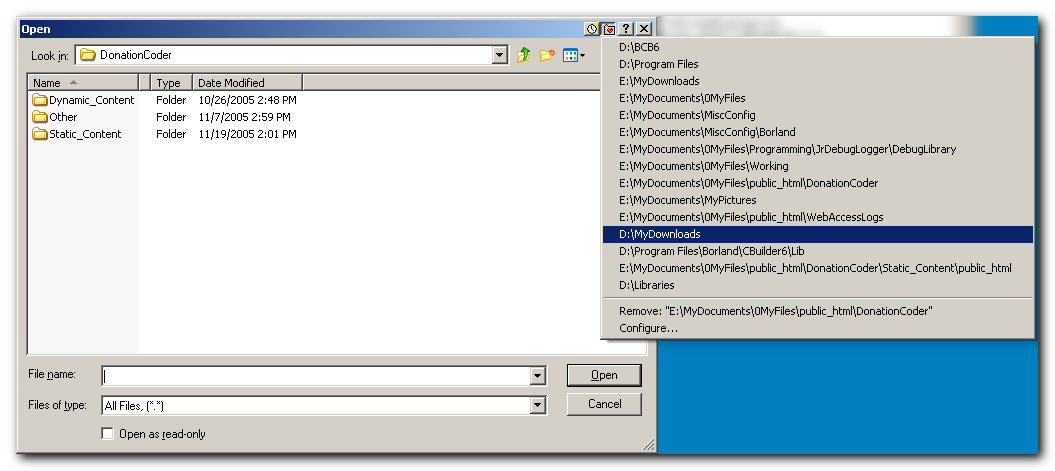
The main thing a dialog box extender does is let you expand the size of the dialogs, change to a different view mode (like details mode), and keep a list of favorite and recent folders you can easily navigate to.

This is not a category where one single program stands out clearly above the rest, and we recommend you try out any that sound appealing to you - this is probably one of those categories where you may viscerally respond well to some better than others. However we did identify three utilities that we thought had the best combination of features:

  • Direct Folders (some nice special features)

  • Filebox Extender (very clean and simple and stable)

  • File-Ex (different approach using combo boxes, great file finder)

  • XFilesDialog (lots of buttons if that suits you; great per-application settings)

We think that the open source program DM2 has great potential to in this category in the long term, but is currently not suitable as an alternative to the shareware programs.

Download: Dialog Extenders Softwares

Credit: http://www.donationcoder.com/Reviews/Archive/DialogExtenders/index.html


WHAT IS AN OPEN/SAVE DIALOG EXTENDER?

In nearly every program you use on your computer, when you save and open a file, you encounter the Microsoft Open/Save Dialog. You may not have given this dialog much thought, but that the fact that you interact with it so often means that even the minor inconveniences can add up over time to major annoyances.

Over the years a number of special utilities have emerged that run in the background (usually living in your system tray), and when they see an open/save/browse dialog pop up, they quickly hook into it and "extend" or "improve it" in a variety of ways.

The most common things done are to enlarge the dialog, sort the entries, and switch into an alternate display mode (many of us like details mode).

Perhaps most importantly, these dialogs can also keep track of recent folders and a list of your favorite folders, and make these available from an easy menu, letting you jump directly to these folders from the open/save dialogs.

This ability, to quickly navigate to recent and favorite folders, can be a life saver if you are the kind of person who keeps their files organized into nice hierarchies.

Some of the tools are minimalist in terms of what they add to the dialogs, and some are more elaborate; which you prefer may depend on your aesthetic preferences.

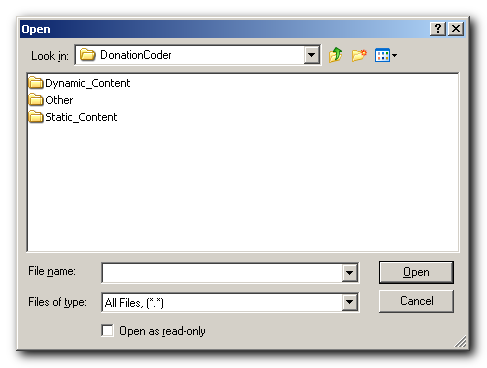
original vs. extended (sample using filebox extender)

FEATURES WE CARE ABOUT

Here are the features we consider most important for a good open/save dialog extender

  • Stability - has to work on modern and older dialogs, and not crash any programs; and has to reliably alter the dialogs without switching into inappropriate views.
  • It should adjust folder-only browse dialogs as well.
  • Needs to be able to change default mode (into details for example).
  • Needs to be able to change size of dialog.
  • Should be aesthetically pleasing and not overly obtrusive.
  • Needs to present list of recent files and folders.
  • Needs to present list of favorite folders, and user should be able to customize this list easily.
  • Should be easy to add current folder to favorites.
  • Needs to work in some tricky cases like Microsoft Office.
  • Ability to specify applications to ignore would be nice.

Download: Dialog Extenders Softwares

Another Software: http://www.southbaypc.com/AutoSizer/

Credit: http://www.donationcoder.com/Reviews/Archive/DialogExtenders/index.html

Nir.