Sunday, June 5, 2011

VisualBee - Your PowerPoint Presentation Solution

Don't get frustrated by PowerPoint ever again. The VisualBee plugin (add-in) is your solution.

Automatic Design


With A Single Click
VisualBee is so easy to use. Just insert your desired content to a blank PowerPoint presentation and press "enhance presentation".


Complete Control
You have total control over your final presentation. Review each slide of your enhanced presentation and modify its content as you see fit.


Keep Your Own Style
Select the different style and feel of your enhanced PowerPoint presentation best representing your own style.


Take The Credit
The final enhanced presentation is yours to keep and use. It is a regular PowerPoint presentation.

Credit: http://visualbee.com/index.php/products/overview.html

Nir.

Sunday, April 24, 2011

Google Searching Tricks

Google searching tricks

cache:
If you include other words in the query, Google will highlight those words within the cached document. For instance, [cache:www.google.com web] will show the cached content with the word “web” highlighted. This functionality is also accessible by clicking on the “Cached” link on Google’s main results page. The query [cache:] will show the version of the web page that Google has in its cache. For instance, [cache:www.google.com] will show Google’s cache of the Google homepage. Note there can be no space between the “cache:” and the web page url.

link:
The query [link:] will list webpages that have links to the specified webpage. For instance, [link:www.google.com] will list webpages that have links pointing to the Google homepage. Note there can be no space between the “link:” and the web page url.

related:
The query [related:] will list web pages that are “similar” to a specified web page. For instance, [related:www.google.com] will list web pages that are similar to the Google homepage. Note there can be no space between the “related:” and the web page url.

info:
The query [info:] will present some information that Google has about that web page. For instance, [info:www.google.com] will show information about the Google homepage. Note there can be no space between the “info:” and the web page url.define:
The query [define:] will provide a definition of the words you enter after it, gathered from various online sources. The definition will be for the entire phrase entered (i.e., it will include all the words in the exact order you typed them).

stocks:
If you begin a query with the [stocks:] operator, Google will treat the rest of the query terms as stock ticker symbols, and will link to a page showing stock information for those symbols. For instance, [stocks: intc yhoo] will show information about Intel and Yahoo. (Note you must type the ticker symbols, not the company name.)


site:
If you include [site:] in your query, Google will restrict the results to those websites in the given domain. For instance, [help site:www.google.com] will find pages about help within www.google.com. [help site:com] will find pages about help within .com urls. Note there can be no space between the “site:” and the domain.

allintitle:
If you start a query with [allintitle:], Google will restrict the results to those with all of the query words in the title. For instance, [allintitle: google search] will return only documents that have both “google” and “search” in the title.

intitle:
If you include [intitle:] in your query, Google will restrict the results to documents containing that word in the title. For instance, [intitle:google search] will return documents that mention the word “google” in their title, and mention the word “search” anywhere in the document (title or no). Note there can be no space between the “intitle:” and the following word.Putting [intitle:] in front of every word in your query is equivalent to putting [allintitle:] at the front of your query: [intitle:google intitle:search] is the same as [allintitle: google search].

allinurl:
If you start a query with [allinurl:], Google will restrict the results to those with all of the query words in the url. For instance, [allinurl: google search] will return only documents that have both “google” and “search” in the url.Note that [allinurl:] works on words, not url components. In particular, it ignores punctuation. Thus, [allinurl: foo/bar] will restrict the results to page with the words “foo” and “bar” in the url, but won’t require that they be separated by a slash within that url, that they be adjacent, or that they be in that particular word order. There is currently no way to enforce these constraints.

inurl:
If you include [inurl:] in your query, Google will restrict the results to documents containing that word in the url. For instance, [inurl:google search] will return documents that mention the word “google” in their url, and mention the word “search” anywhere in the document (url or no). Note there can be no space between the “inurl:” and the following word.Putting “inurl:” in front of every word in your query is equivalent to putting “allinurl:” at the front of your query: [inurl:google inurl:search] is the same as [allinurl: google search].

Credit:
Googlebig.com


Nir.

Wednesday, October 27, 2010

Stream Transport - Watch your favorites. Anytime. For free

  • Widely support for overwhelming online videos
    The app is able to browse and download video clips from video hosting websites of HTTP, RTMP, RTMPT, RTMPE, RTMPTE protocol, and these cover overwhelming majority of websites such as Hulu, Veoh, Boxee, Joost, YouTube, Yahoo Video, CBS, etc.
  • Capture URL automatically
    The URL of any video clip that is playing will be auto-captured and listed out for your convenience, and you can download it with one click or just ignore it. There is no bother to add URL manually.
  • Enrich your A/V collection
    This FLV Downloader is capable of downloading almost any video and audio file you can play online so that you can turn numerous online video and audio into your own collection. The videos will be saved as FLV or MP4 format in your media library and a powerful player is inlaid for you to play them back freely.
  • Considerate task manager and view log
    The task manager lists detailed information of files such as name, size, progress, location etc and allows you to play, stop, delete and convert (full version) the FLV files downloaded. Auto shutdown is available as well. The view log makes it easier to manage your tasks.

Download & Credit: http://www.streamtransport.com

How to:

Hulu.com is very famous for its attracting video contents and also known as an undownloadable site which is using highly encrypt RTMP, and RTMPE protocols for video streaming. The new released free download tool, StreamTransport (used to be called Any FLV Downloader), will help you out and download whatever videos you like from Hulu, and more other video-sharing sites, such as YouTube, MySpace, Veoh, Yahoo!Video, etc. Here’s the guide on how to use this handy tool. You can download the installation program from http://www.streamtransport.com. Install and launch it.

1. Go to link. Type in the link of the video-sharing site you plan to go, and click Start button or press Enter on your keyboard to confirm. Here’s a Visit Hulu button which enables you go to Hulu.com with a single click.

2. URL detection. Click in the page where the wanted video is playing, and the program will detect the video URL automatically for you.

3. Create download task. Select the right URL in the detection list section and click Download to create a download task. There is detailed information of each video. For most streams, there will be ads before the main video. You can manually select the longer one and/ or latter one for the main video stream. And then, the Download window showing the progress of download will pop up.

4. Pause, Resume, Stop, Remove, and Locate video tasks. In Download window, you can monitor the process of the download. You can also stop, remove, or locate a downloading task. For the stopped tasks, you can also resume them, but the download will start again from the very beginning.
Note: This window can be minimized or closed without ending the downloading tasks. You can resume the monitor by clicking Show Tasks on the main interface of this video stream downloading tool.
5. Muli-task availability. You can download up to 5 videos at one time.
6. Play the downloaded video. The video you downloaded is .flv files. You can play them with Splayer, VLC player, or any other free FLV players.
7. What’s more you can do with the downloaded file? You can also convert the files into other format for playing with some video converters. Searching on Google Search, you will find plenty of free tools for it.

Download & Credit: http://www.streamtransport.com


Nir.

Wednesday, June 16, 2010

Best Open/Save Dialog Box Extenders

Most people don't know about open/save dialog box extenders, which is shame since these little programs can make your life a lot easier. They work in the background and improve the functionality of the common Microsoft Windows open and save dialog boxes that are used from nearly every program. You might not have given much thought to those built in dialogs, but the simple truth is that they suck. After spending a few days with the programs below we think you'll probably agree with us that you couldn't live without one.

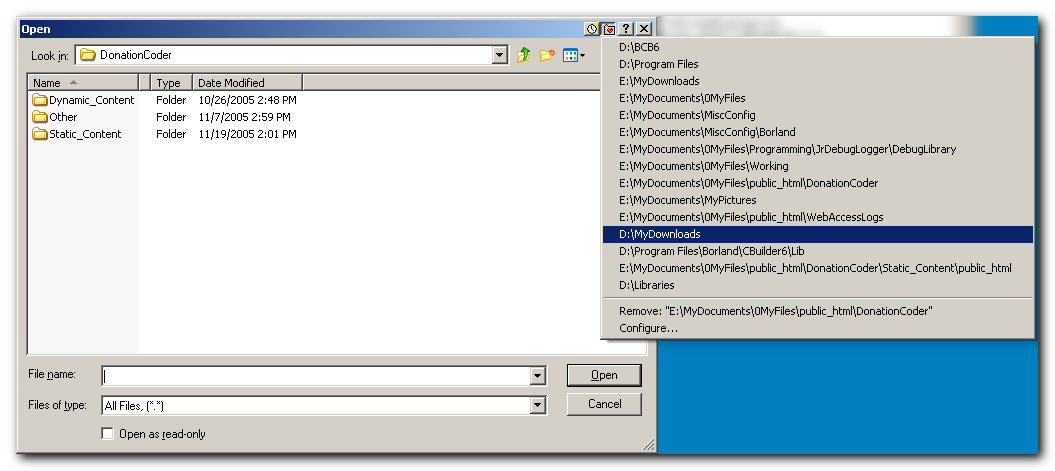
The main thing a dialog box extender does is let you expand the size of the dialogs, change to a different view mode (like details mode), and keep a list of favorite and recent folders you can easily navigate to.

This is not a category where one single program stands out clearly above the rest, and we recommend you try out any that sound appealing to you - this is probably one of those categories where you may viscerally respond well to some better than others. However we did identify three utilities that we thought had the best combination of features:

  • Direct Folders (some nice special features)

  • Filebox Extender (very clean and simple and stable)

  • File-Ex (different approach using combo boxes, great file finder)

  • XFilesDialog (lots of buttons if that suits you; great per-application settings)

We think that the open source program DM2 has great potential to in this category in the long term, but is currently not suitable as an alternative to the shareware programs.

Download: Dialog Extenders Softwares

Credit: http://www.donationcoder.com/Reviews/Archive/DialogExtenders/index.html


WHAT IS AN OPEN/SAVE DIALOG EXTENDER?

In nearly every program you use on your computer, when you save and open a file, you encounter the Microsoft Open/Save Dialog. You may not have given this dialog much thought, but that the fact that you interact with it so often means that even the minor inconveniences can add up over time to major annoyances.

Over the years a number of special utilities have emerged that run in the background (usually living in your system tray), and when they see an open/save/browse dialog pop up, they quickly hook into it and "extend" or "improve it" in a variety of ways.

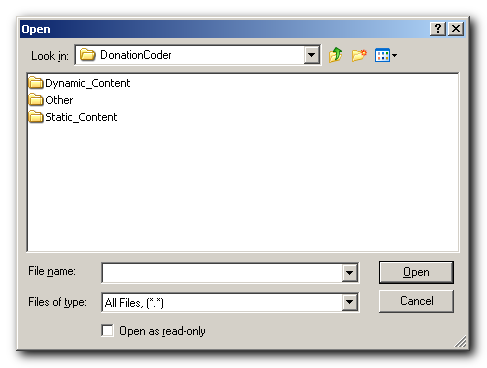
The most common things done are to enlarge the dialog, sort the entries, and switch into an alternate display mode (many of us like details mode).

Perhaps most importantly, these dialogs can also keep track of recent folders and a list of your favorite folders, and make these available from an easy menu, letting you jump directly to these folders from the open/save dialogs.

This ability, to quickly navigate to recent and favorite folders, can be a life saver if you are the kind of person who keeps their files organized into nice hierarchies.

Some of the tools are minimalist in terms of what they add to the dialogs, and some are more elaborate; which you prefer may depend on your aesthetic preferences.

original vs. extended (sample using filebox extender)

FEATURES WE CARE ABOUT

Here are the features we consider most important for a good open/save dialog extender

  • Stability - has to work on modern and older dialogs, and not crash any programs; and has to reliably alter the dialogs without switching into inappropriate views.
  • It should adjust folder-only browse dialogs as well.
  • Needs to be able to change default mode (into details for example).
  • Needs to be able to change size of dialog.
  • Should be aesthetically pleasing and not overly obtrusive.
  • Needs to present list of recent files and folders.
  • Needs to present list of favorite folders, and user should be able to customize this list easily.
  • Should be easy to add current folder to favorites.
  • Needs to work in some tricky cases like Microsoft Office.
  • Ability to specify applications to ignore would be nice.

Download: Dialog Extenders Softwares

Another Software: http://www.southbaypc.com/AutoSizer/

Credit: http://www.donationcoder.com/Reviews/Archive/DialogExtenders/index.html

Nir.

Wednesday, March 17, 2010

Dimdim - Meet in your browser for free

Dimdim Meet freely

Meet in your browser.
If you can browse, you can meet freely

Face-to-face meetings used to be the only way to get things done. Now the best way to save money, time and travel is to collaborate over the Web with Dimdim. Push button simplicity lets everyone host or attend live meetings, demos and webinars using just a web browser instantly increasing your productivity. Give presentations, share web pages, whiteboards, voice, video – even record your events - with no software to install and with no hassles.

Dimdim is free for small meetings and is only $25 per month for unlimited use with many more participants. And only Dimdim is both easier to use and much less expensive than WebEx or GoToMeeting.

Try it or buy it today and see why this is The Best Way to Work®.

Credit: http://www.dimdim.com

Nir.